

How to Look After Your Gaming Laptop
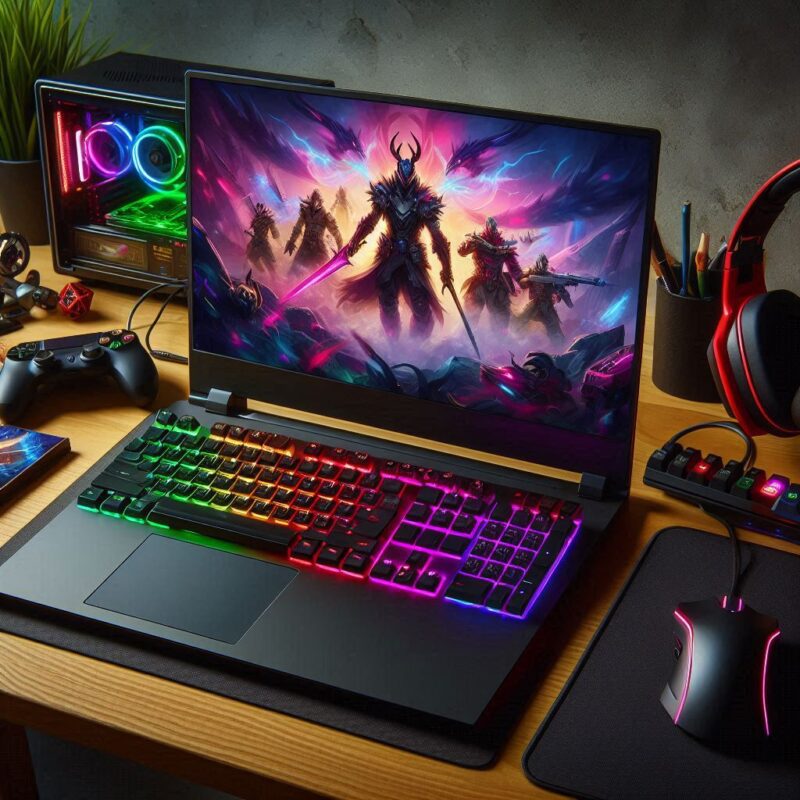
Windows Optimisation, Drivers, Updates, and Physical Cleaning
Introduction
Gaming laptops are powerful machines designed to handle resource-intensive tasks. However, without proper maintenance, they can suffer from overheating, performance issues, and hardware failures. In this comprehensive guide, we will cover Windows optimisation, driver updates, regular system updates, and physical cleaning of the coolers and keyboard to keep your gaming laptop in peak condition.
Optimising Windows for Maximum Performance
1. Adjust Power Settings
Windows’ default power settings are often optimized for battery life rather than performance. To ensure your laptop operates at its best:
- Go to Control Panel > Power Options.
- Select High Performance mode.
- If using Windows 11, navigate to Settings > System > Power & battery > Power mode and choose Best performance.
2. Disable Startup Programs
Unnecessary background programs consume valuable system resources. To disable them:
- Press Ctrl + Shift + Esc to open Task Manager.
- Click on the Startup tab and disable non-essential programs.
- Restart your laptop for changes to take effect.
3. Adjust Visual Effects
Windows’ visual effects can slow down your gaming laptop. Optimise them by:
- Right-click This PC > Properties > Advanced system settings.
- Under Performance, click Settings.
- Select Adjust for best performance or manually disable effects.
4. Enable Game Mode
Windows has a built-in Game Mode that optimises resources for gaming:
- Open Settings > Gaming > Game Mode.
- Toggle Game Mode ON.
Keeping Drivers and System Updated
1. Update GPU Drivers
The graphics driver is crucial for gaming performance. Always keep it up to date:
- NVIDIA Users: Use GeForce Experience to check and install updates.
- AMD Users: Use AMD Adrenalin Software for driver updates.
- Intel Users: Use Intel Driver & Support Assistant.
2. Update Windows Regularly
Keeping Windows up to date ensures security and performance improvements:
- Go to Settings > Update & Security > Windows Update.
- Click Check for updates and install all pending updates.
3. Update BIOS and Chipset Drivers
BIOS updates improve compatibility and system stability:
- Visit your laptop manufacturer’s website.
- Download and install the latest BIOS and chipset drivers.
Maintaining Optimal Cooling
1. Clean Cooling Fans and Heat Sinks
Over time, dust accumulates inside your laptop, causing overheating. Clean your cooling system every 3-6 months:
- Turn off and unplug your laptop.
- Use a compressed air canister to blow out dust from the vents.
- If comfortable, remove the bottom panel and clean the fans carefully with a soft brush.
2. Monitor Temperatures
Use software like HWMonitor, MSI Afterburner, or SpeedFan to check your CPU and GPU temperatures. Ideal gaming temperatures should be:
- CPU: Below 85°C under load.
- GPU: Below 85°C under load.
If temperatures are too high, consider repasting the thermal compound.
3. Use a Cooling Pad
A cooling pad provides additional airflow and prevents overheating. Invest in a high-quality cooling pad with multiple fans for optimal cooling.
Cleaning and Maintaining the Keyboard
1. Regular Surface Cleaning
Keyboards collect dust, food crumbs, and oils. To keep your keyboard clean:
- Use a soft microfiber cloth dampened with isopropyl alcohol to wipe the keys.
- Use compressed air to remove debris between keys.
2. Deep Cleaning the Keyboard
For a thorough clean:
- If your keys are removable, carefully pop them off using a keycap puller.
- Clean underneath with a soft brush or cotton swab.
- Reassemble the keyboard carefully.
Optimising Storage and Memory
1. Keep Storage Clean
A cluttered drive can slow down your gaming laptop. Regularly clean up files:
- Run Disk Cleanup: Type “Disk Cleanup” in the Start menu and delete temporary files.
- Use Storage Sense: Go to Settings > System > Storage, enable Storage Sense, and configure it to auto-clean junk files.
- Uninstall unused programs via Control Panel > Programs & Features.
2. Defragment HDD or Trim SSD
- For HDD users: Open Defragment and Optimize Drives and run a defragmentation.
- For SSD users: Ensure TRIM is enabled by running:
fsutil behavior query DisableDeleteNotifyA result of 0 means TRIM is enabled.
3. Upgrade RAM and Storage
- If experiencing frequent slowdowns, upgrading from 8GB to 16GB RAM can improve performance.
- Upgrade to an NVMe SSD for faster boot times and load speeds.
Keeping Malware and Bloatware in Check
1. Use a Reliable Antivirus
Malware can drastically reduce performance. Use Windows Defender or a reputable third-party antivirus like Bitdefender or Malwarebytes.
2. Remove Bloatware
Manufacturers preinstall unnecessary software that consumes resources. To remove them:
- Open Settings > Apps > Installed Apps and uninstall unused programs.
- Use CCleaner to remove residual files.
Final Tips for Longevity
- Avoid overcharging: Keep battery levels between 20-80% to extend lifespan.
- Shut down properly: Avoid forcing shutdowns to prevent software corruption.
- Use a surge protector: Protect your laptop from power fluctuations.
- Store in a cool environment: Avoid direct sunlight and excessive heat.
By following these steps, your gaming laptop will remain in peak condition, delivering optimal performance for years.
 Previous Post
 Next Post